Numeric Debug Modes
Overview
Debugging uint64 and uint256 values in Blueprints can be very useful when diagnosing logic issues or debugging
large numeric values. To support this, we’ve introduced debug modes that allow real-time inspection of these types
in both hexadecimal and decimal formats.
You can enable this feature through the project settings:
- 1
Edit | Project Settings | 3Studio | Math [User Settings]. - 2
Enable Debug Logging: Calculate decimal and hex values for each uint64 value. - 3
Enable Debug Logging: Calculate decimal and hex values for each uint64 value.
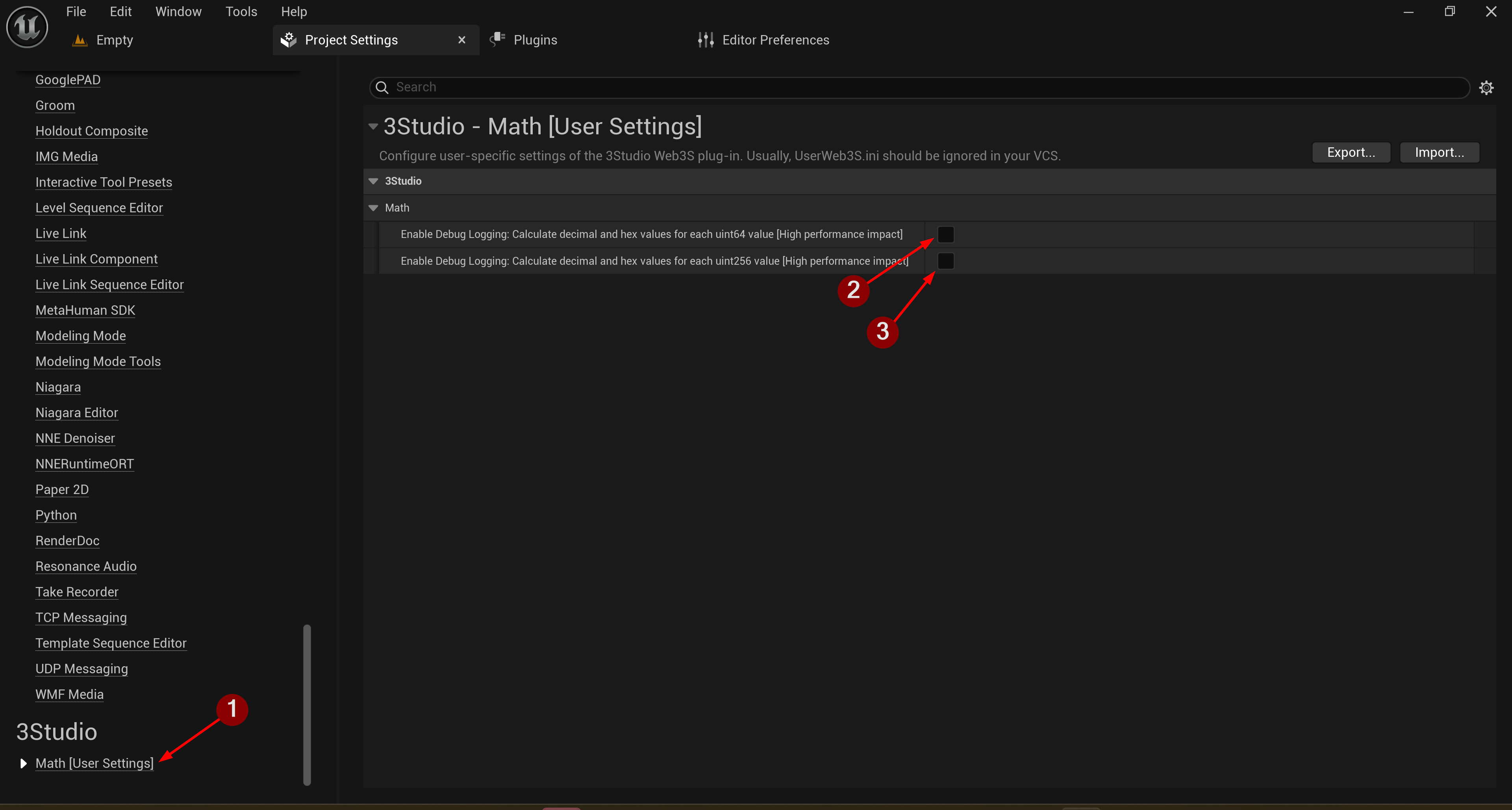
Please keep in mind that when this debugging feature is enabled it may have a high performance impact.
Also, when packaging with Build Configuration set to Shipping, this debugging feature is disabled automatically and won't affect performance.
Usage
Once debug logging is enabled, you can inspect uint64 and uint256 values directly in the Blueprint Debugger.
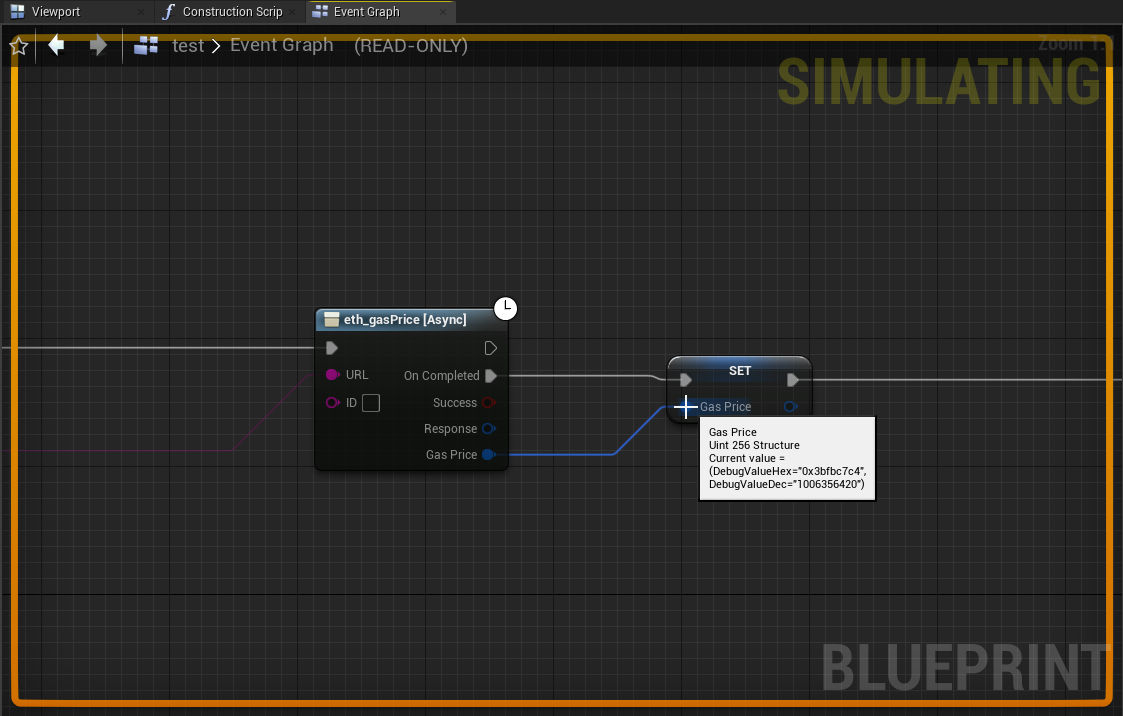
Hovering over a variable of either type during a breakpoint or step-through will reveal two new values:
DebugValueHex— Hexadecimal representation of the value.DebugValueDec— Decimal representation of the value.
This is especially helpful when working with large values.
Debug Mode Enabled
When enabled, both debug representations are dynamically computed and displayed for each uint64 and uint256
value in the debugger.
Since these conversion are executed for each variable of data type uint64 or uint256 it may impact runtime performance.
However, it can be a very helpful debugging tool nonetheless.
Debug Mode Disabled
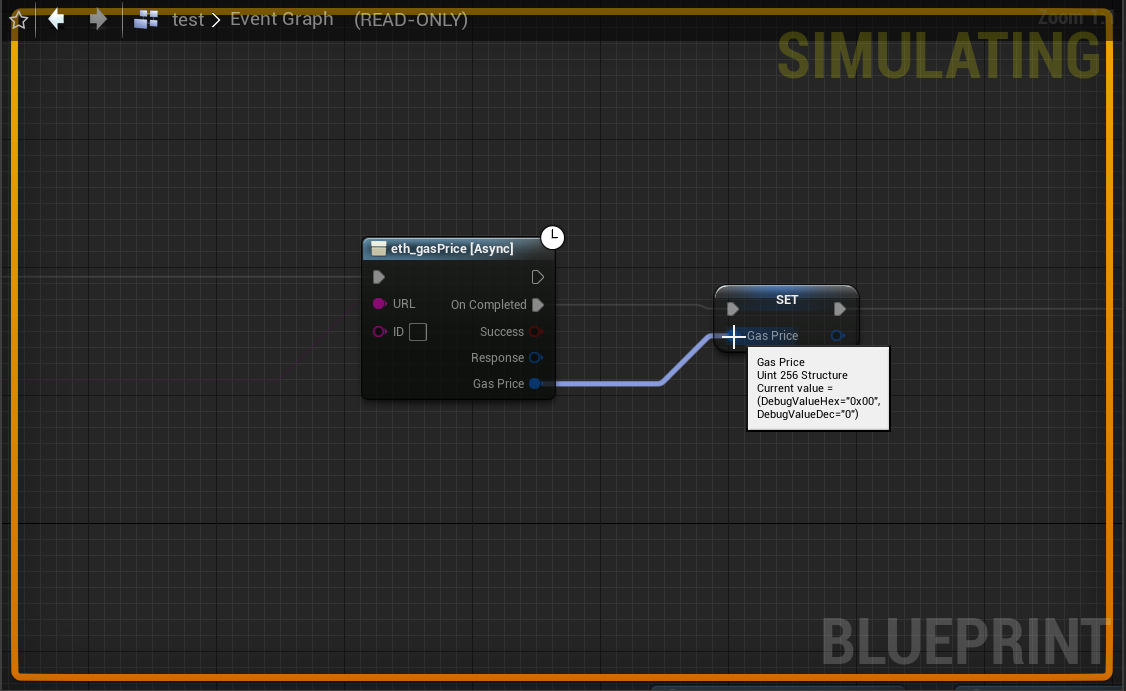
When disabled, no extra computation is performed. Both DebugValueHex and DebugValueDec will show as 0,
as shown below:
Best Practices
- Use this feature only when actively debugging logic involving
uint64oruint256. - Disable it during normal development and testing to avoid unnecessary slowdowns.
- Remember: It’s automatically disabled in Shipping builds, so no extra configuration is needed for production.